


 All games
 Jackpot
 Live casino
 Fishing
 Cards and arcade
 Lottery 2D/3D
 VIP
 WavePay
 Deposit
 Withdrawal
 Mobile app
 Service address

A80 APK download: source checks and Android permissions
This page does not currently provide a verified direct A80 APK download. We cannot give a confirmed package version, file size, minimum Android requirement or security-test result. This guide explains what to ask for and check if you are offered a file. We have not downloaded, installed or tested an A80 APK for this article.
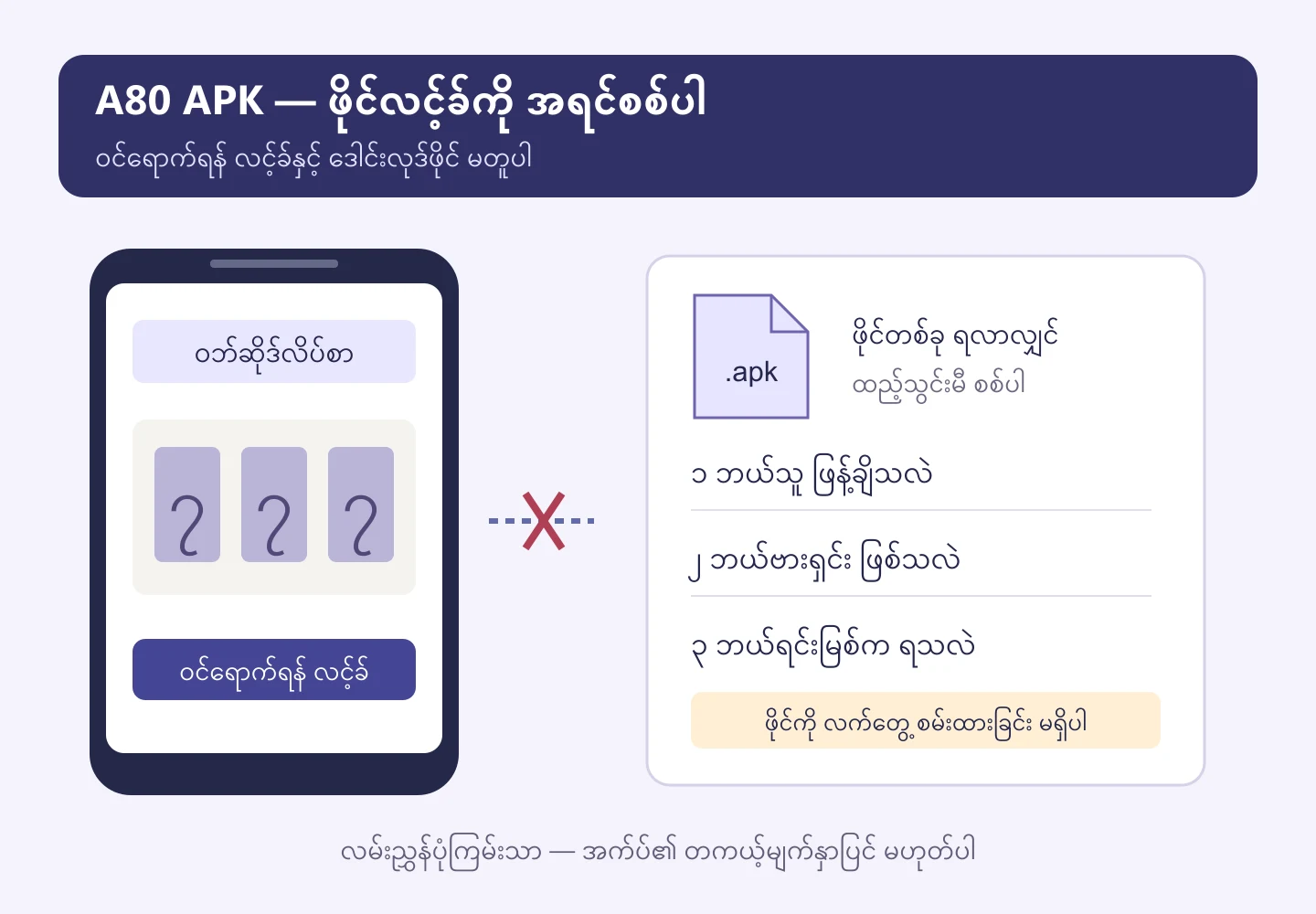
Is the play button an APK download?
No. A link that opens a sign-in or play site should not be treated as an APK file. If you need a package, use the A80 contact page to ask whether a current distribution link is available and who publishes it. A support route is not evidence that a file has passed security testing.
For browser access and home-screen shortcuts, see the mobile-access guide. The checks below concern an Android package, not a bookmark.
Ask for these details before opening a file
| Detail | What it helps establish | Status on this page |
|---|---|---|
| Download address and publisher | Where the file came from and who distributed it | No verified package link |
| Version, release date and package name | Whether similarly named files refer to the same app and release | Not checked against a current file |
| File size and Android requirement | Download completeness and device compatibility | No fixed requirement confirmed |
| Signing-certificate details and a published SHA-256, if available | Comparison with a trusted publisher record | No verified reference recorded |
A matching filename or logo does not establish matching code. Android requires APKs to be digitally signed; a signature alone does not prove the signer is the publisher you intended or guarantee harmless behavior. A matching SHA-256 establishes a match to the reference file, not a substitute for security testing.
When Android asks for installation permission
Stop if the source remains unclear. If you have checked the file and publisher and decided to proceed, inspect permission for the particular browser or file manager opening it. Google’s Pixel instructions locate this under Settings → Apps → Special app access → Install unknown apps. Wording varies across devices. Afterwards, turn off Allow from this source for that app.
Keep Google Play Protect enabled. Google explains that it checks for potentially harmful apps and may warn, block or remove them. If a warning appears, address its cause rather than disabling protection to continue. An absence of warnings is not a guarantee that a file is safe.
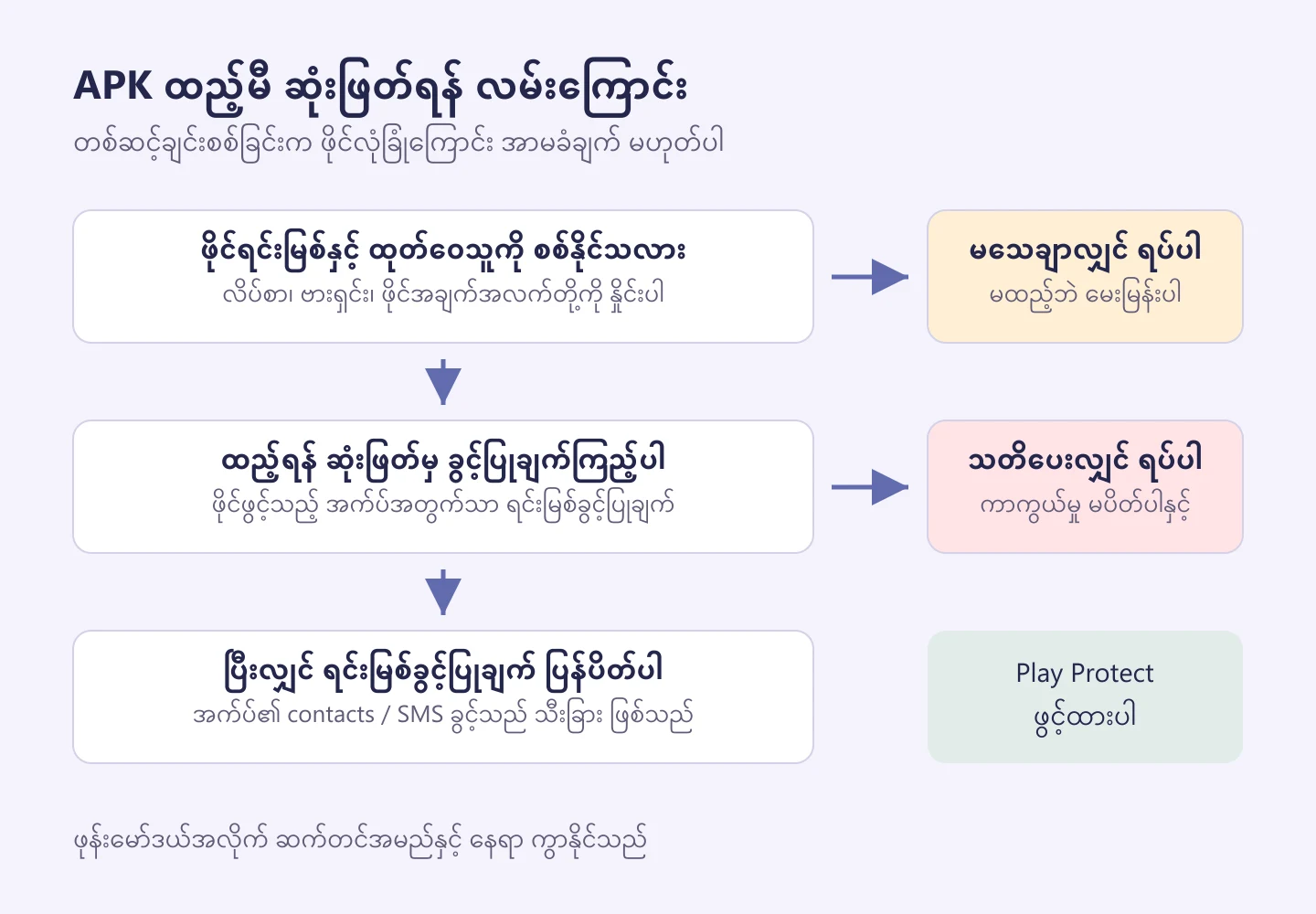
Installation permission is not access to your contacts
Allowing a browser to install an APK is different from giving the installed game access to contacts or SMS. Read what a permission is needed for and what happens if you decline it. If the reason is unclear, decline and ask. Android’s permission guide explains how to review an app through Settings → Apps → [app] → Permissions.
What to record when installation fails
Before repeatedly deleting and downloading the file, record the exact warning, phone model, Android version, source address and download time. An incomplete file, storage problem, compatibility issue and security warning require different responses. Do not rush to uninstall an existing app: first consider account recovery and data stored only on the device.
A useful support message is: “My phone is [model], running Android [version]. Opening the file from [address], obtained at [time], shows ‘[exact message]’. Please confirm the current publisher, release and compatible package.” Leave out passwords, one-time security codes and wallet PINs.
Using an iPhone?
An APK is an Android package, not an iPhone installation method. For website access, Apple’s Safari guide describes Share → Add to Home Screen. This creates a website shortcut or web app; it does not establish that a separate A80 iOS app exists.
Explore other guides on the A80 homepage. The package-availability and testing limits above were reviewed on 8 October 2026.